
TroFMIS Service Guide
TroFMIS system had capabilities for different users to compute the analysis and generate products based on their specifications. The system ergonomics can be experienced with the tools within the system, as well as the arrangement of the different components that the user can access. The various tools and functionalities are as shown in the figure below and described in the next section.
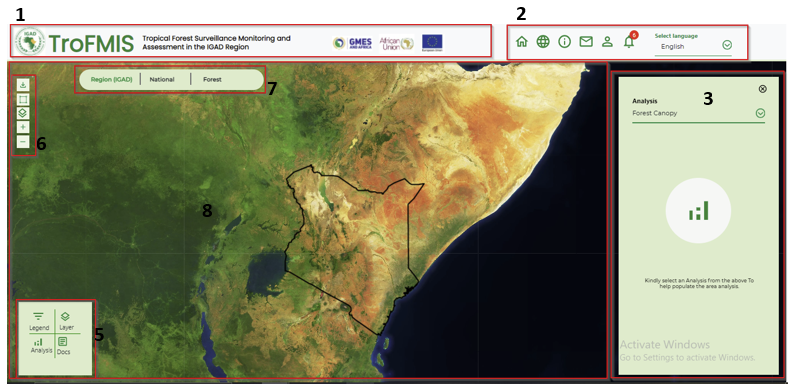
Fig. 7 TroFMIS Tools
TroFMIS system navigation bar comprising of the title, and the patner logos inclusive of GMES & Africa, African Union Commission and European Union.
System tools comprising of the Home button, linking to the home page of the system. The dashboard button leading to the system dashboard where computation and layer selection can be done, system information icon i, messaging icon for message notification, the User registration button, that allows the user to register for alerts, Notification icon to allow the user manage their subvscribed alerts and loaded shapefiles seamlessly.
Right Side panel comprising of selection panel for selecting type of analysis, which is connected to the left bottom panel.
The left corner panel comprising of buttons to activate the analysis panel, comparison tool between layers, and documentation where all the step by step use of the system is documented.
System tools section, from top download data icon, for drawing customed boundaries, changing and selecting different base map icon, zoom in/out button respectively.
The comparison tool box including opacity and swap tool from left to right.
The above descriptions are also visualised in the image below.
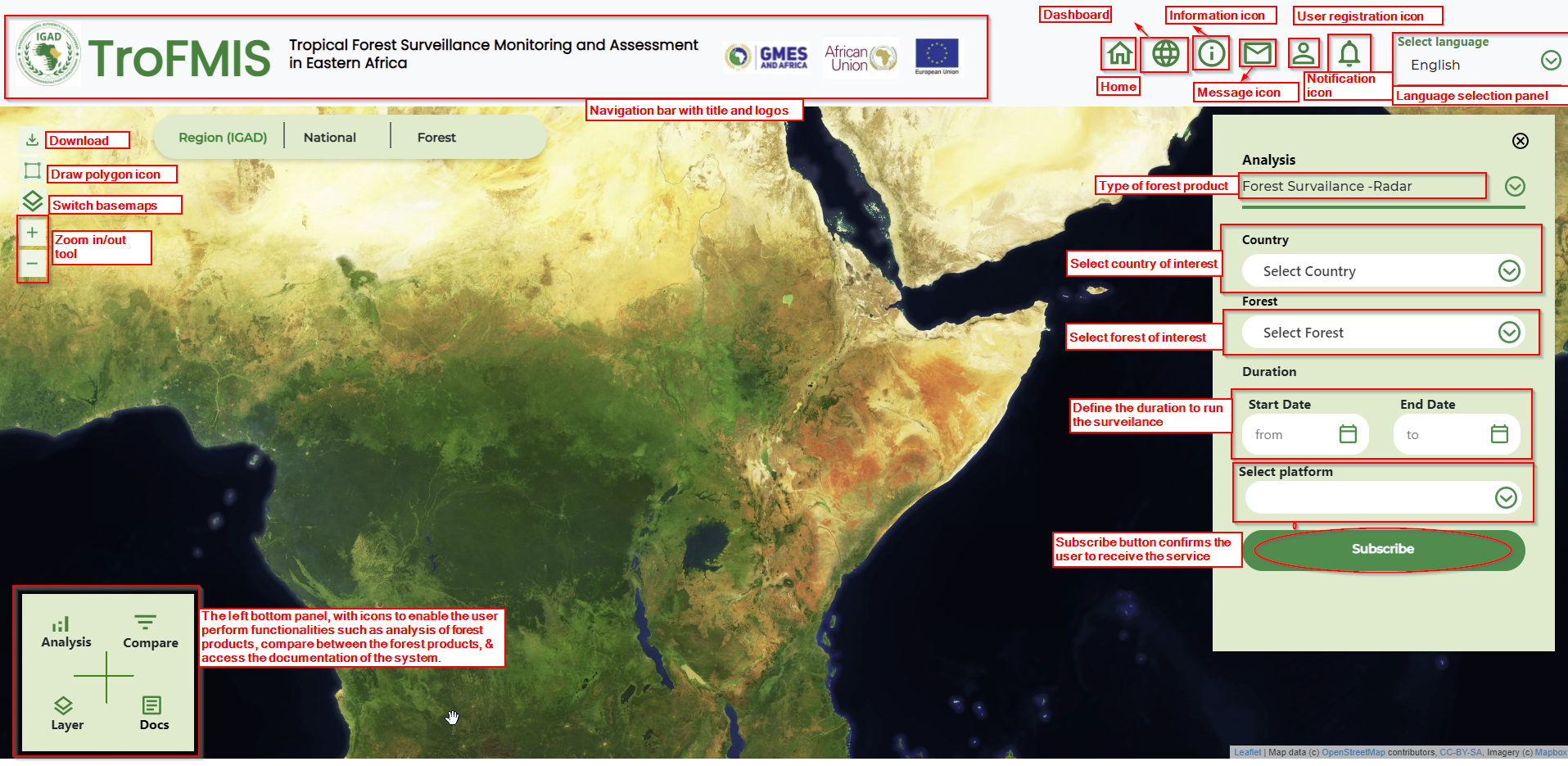
Fig. 8 TroFMIS Tools
System Selection
The TroFMIS system contains the forest products including
Forest Canopy Density
Forest Canopy Change
Carbon Flux/Emmission
Forest Disturbance - Radar
Forest Surveilance - Radar
In order to compute these products, the user needs to select the products from the drop down list bar as shown in the figure below.
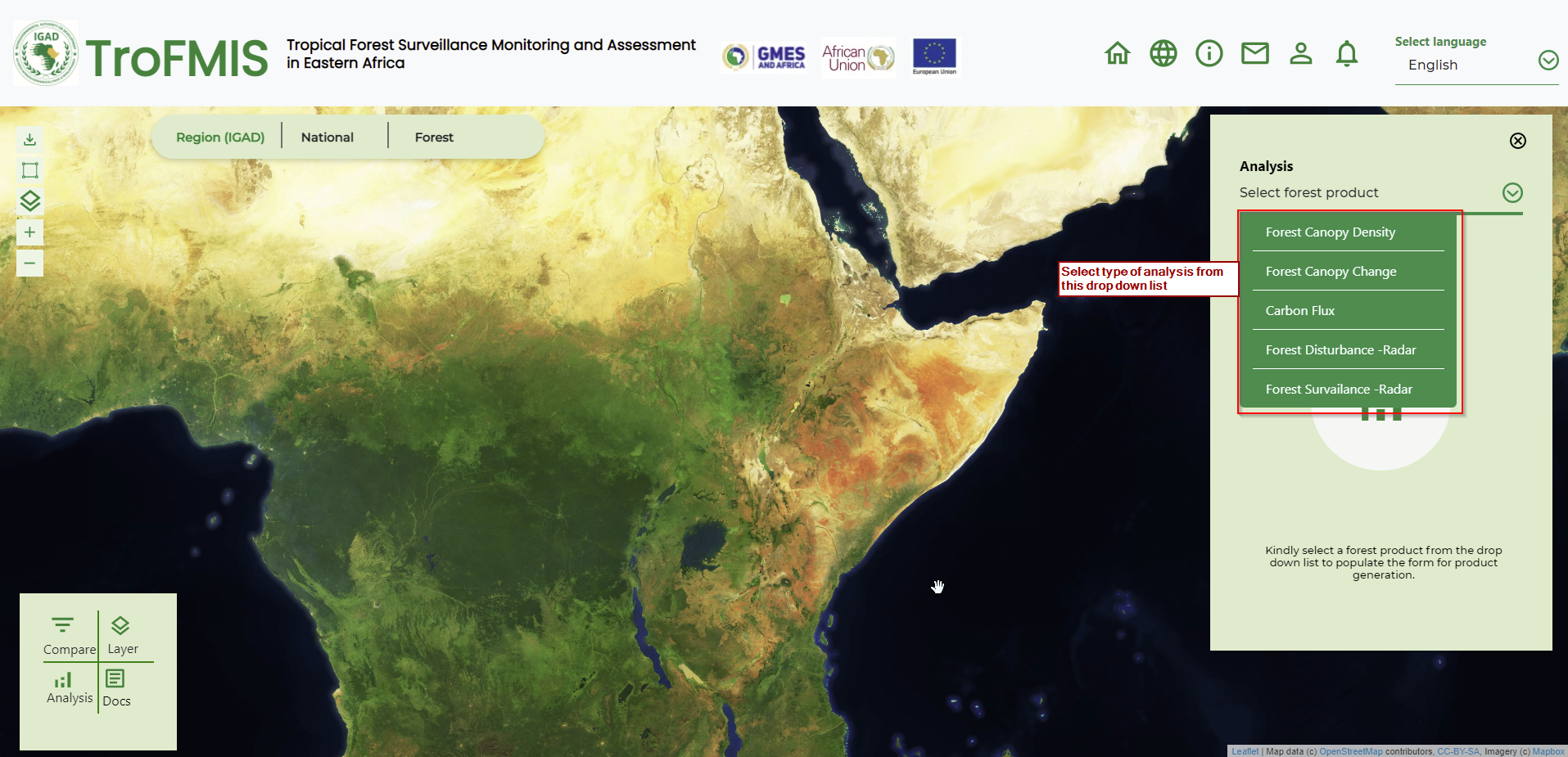
Fig. 9 System Product Selection (TroFMIS)
The selection of the forest products will allow the user to select the Country, Forest of Interest, The analysis year and the Platform from which to base their analysis. The platform is either
Landsat
Sentinel
While the area of interest could be any forest that the user is interested in monitoring. After selection, the user can generate the products using the generate button.The process of generating product is discussed under specific system product generation in the next section.
User Registration
In order to access some specific system functionalities, such as computing the Forest Surveilance using Radar, A will be required to register and log in wih their credentials, specifying their user name and email addresses. Top register please click the icon as illustrated in the figure below.
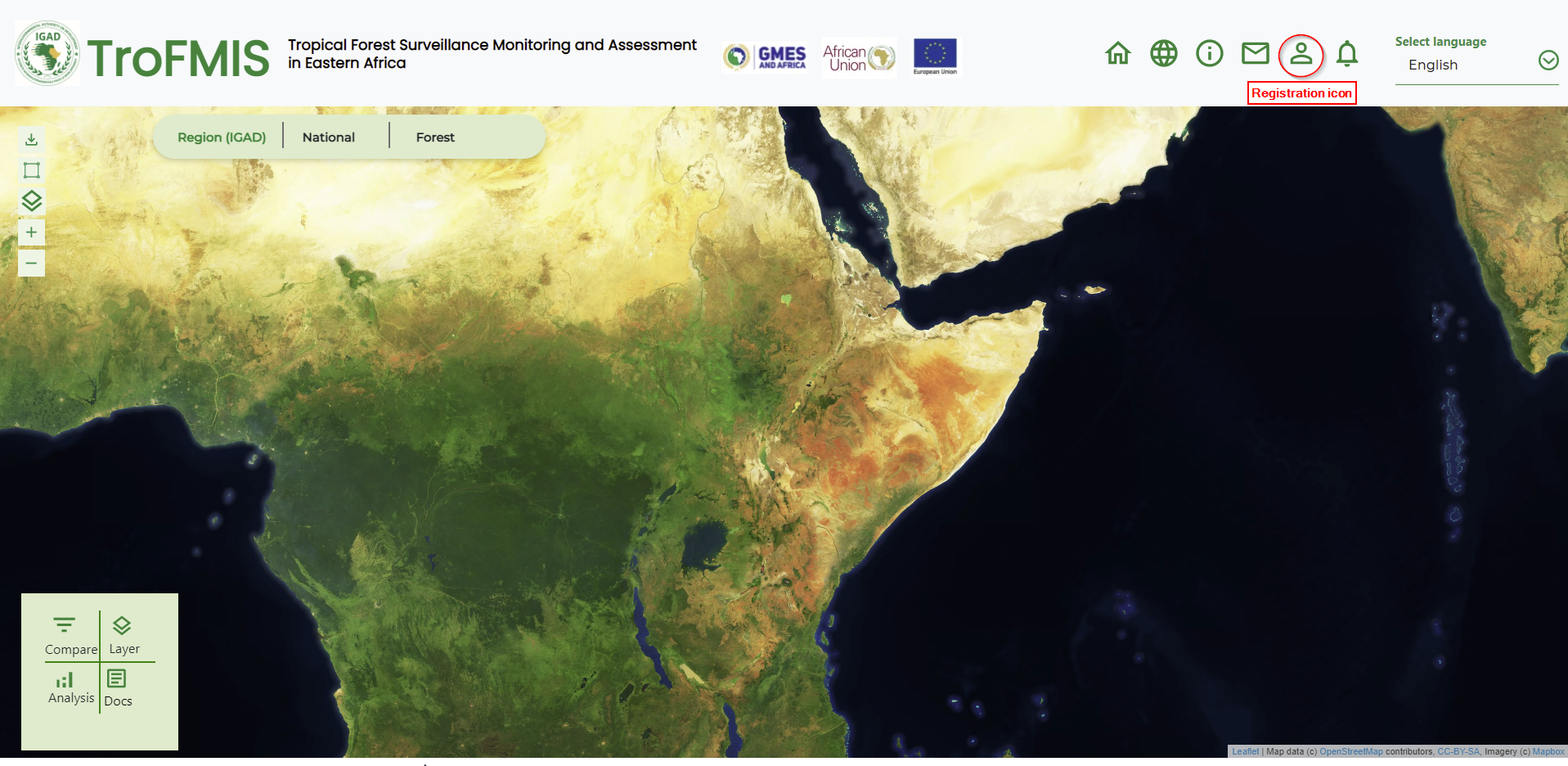
Fig. 10 Registration icon.
After accessing the registration form, a user will insert their preffered credentials and a working email in order to recieve the specified output after computation. The registration form is as shown in the figfure below.
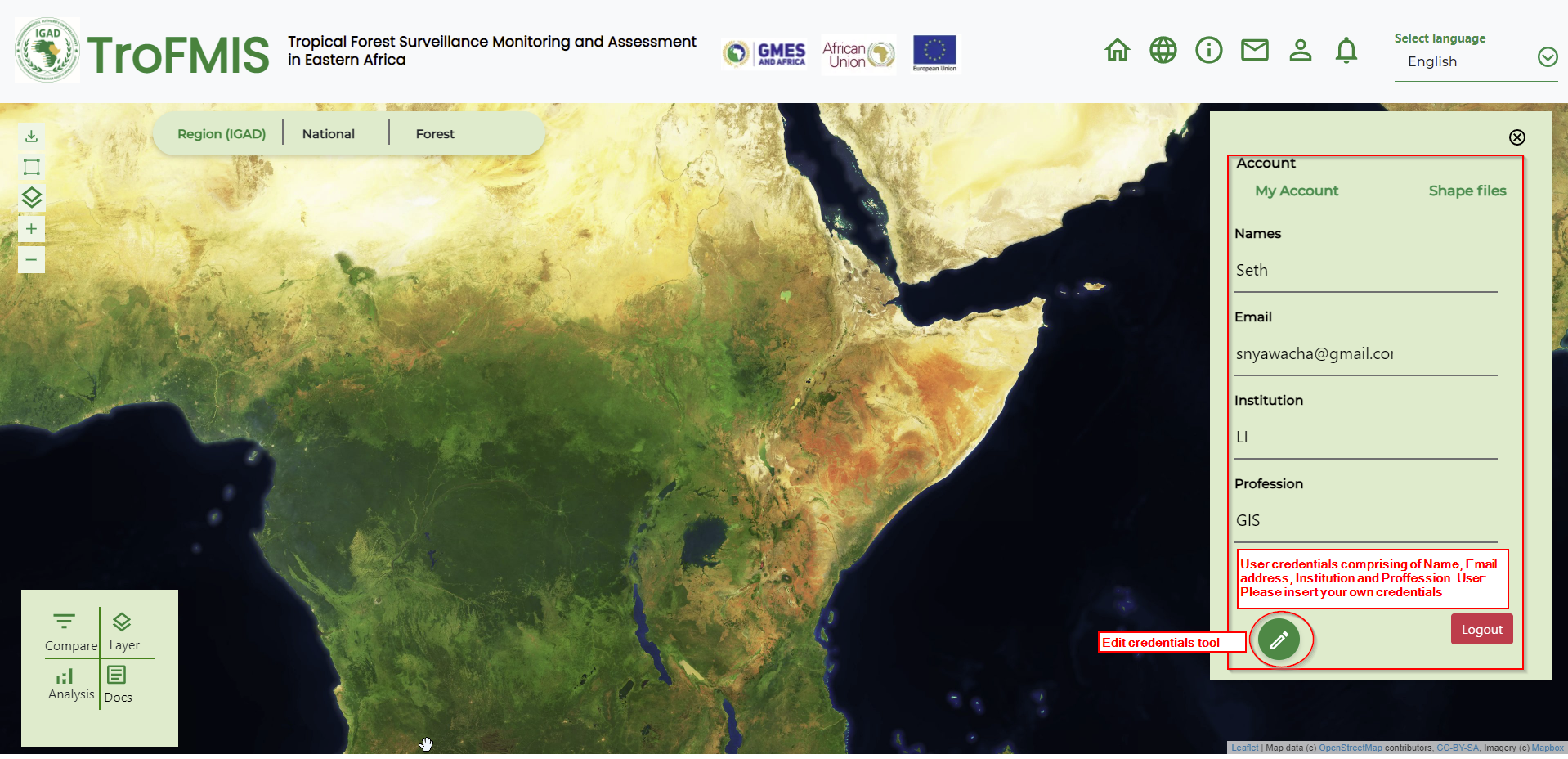
Fig. 11 Registration form.